 Inkhaus
Widgets#
A widget is one tile on a tab. You add it to config.yaml as one item of a tab's widgets: list. Most widgets need only the line entity: with the id from Home Assistant. The kind of widget follows from the first part of the id (light. gives a light).
Each section below says what the widget is for, what you can set, and shows a picture and a snippet to copy.
Options every widget has#
| Key | Values | Default | Effect |
|---|---|---|---|
entity | an entity id, such as light.floor_lamp | none | The thing in Home Assistant. Every widget needs entity or group, except notifications (see its section). |
group | a group name from groups: | none | Several things in one widget (see Cover groups). |
name | text | the Home Assistant name | The label on the tile. Required for groups. |
size | WxH, such as 2x1 | depends on the type | Cells wide and high. Only some types allow another size (table at the end). |
type | a widget type | from the entity | Pick the widget type yourself, for entities that have none (see Show any entity as a sensor). |
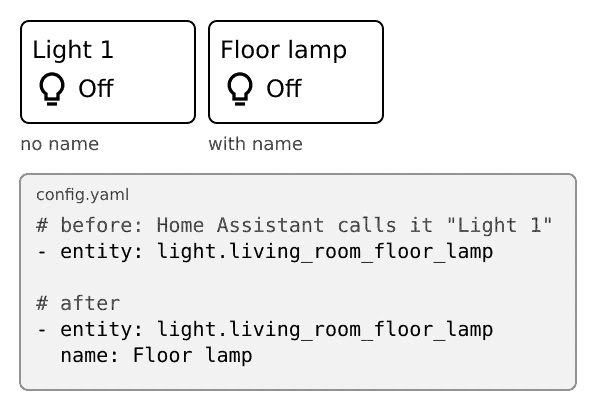
What you'll see: the tile shows your name instead of the Home Assistant name.
Light#
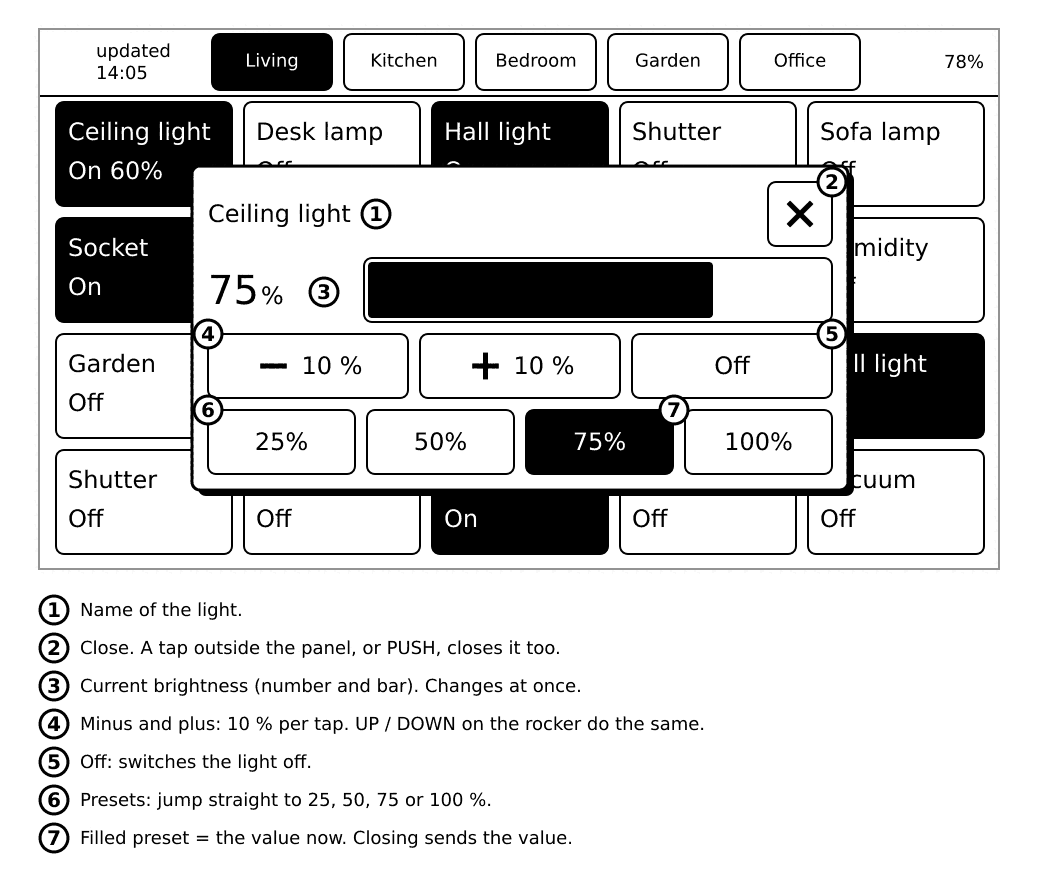
For lights. A tap switches it on or off. A long press opens a brightness popup, if the light can dim.
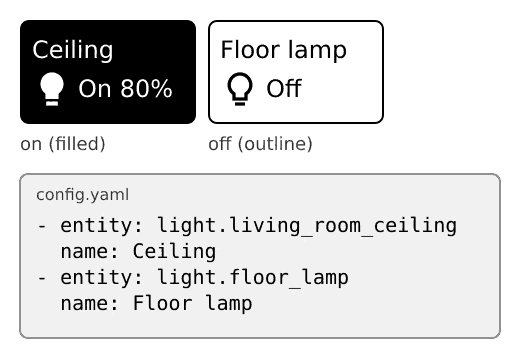
- entity: light.living_room_ceiling
  name: Ceiling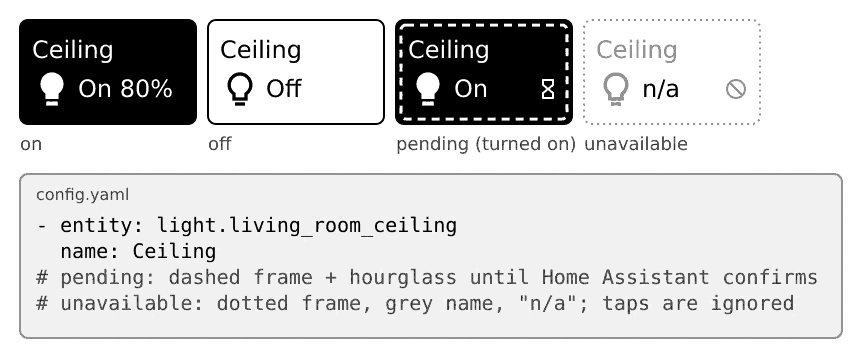
If the tile stays dashed with an hourglass, Home Assistant has not confirmed yet. If it is dotted with n/a, the light is unavailable.
The brightness popup has plus and minus buttons, presets and an Off button.
Switch, window sensor and automation#
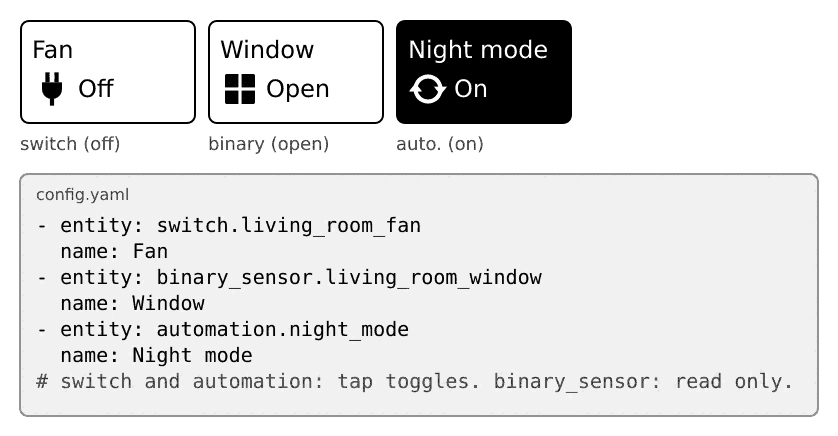
- entity: switch.living_room_fan
  name: Fan
- entity: binary_sensor.living_room_window
  name: Window
- entity: automation.night_mode
name: Night mode- Switch: a tap toggles it.
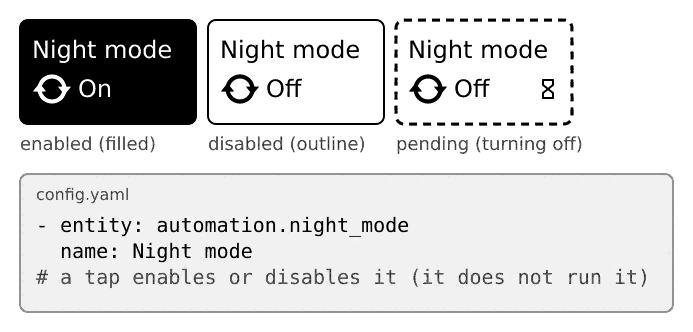
- Automation: a tap enables or disables it. It does not run it.
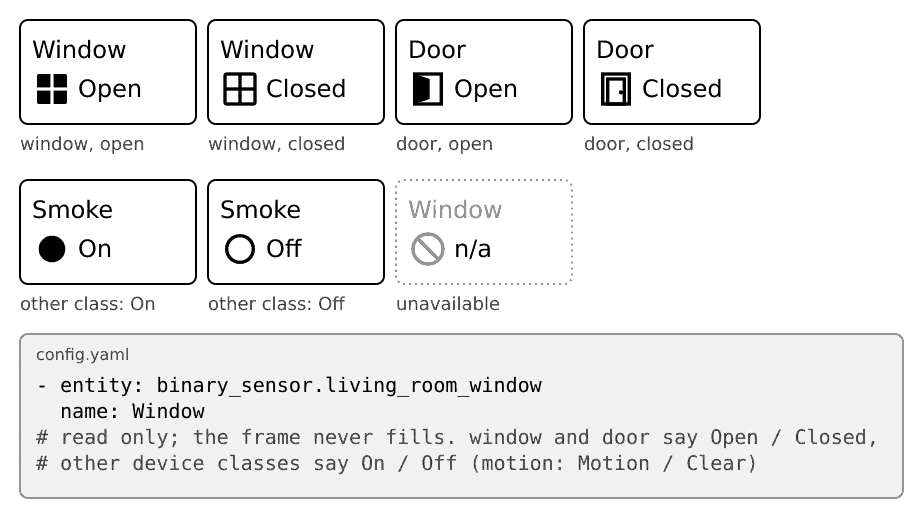
- Binary sensor (door, window, motion): read only. Window and door say Open or Closed, other kinds say On or Off (motion says Motion or Clear).
Cover (shutter, blind)#
A wide tile with three buttons: up, stop and down. The button of the direction the cover is moving in is filled.
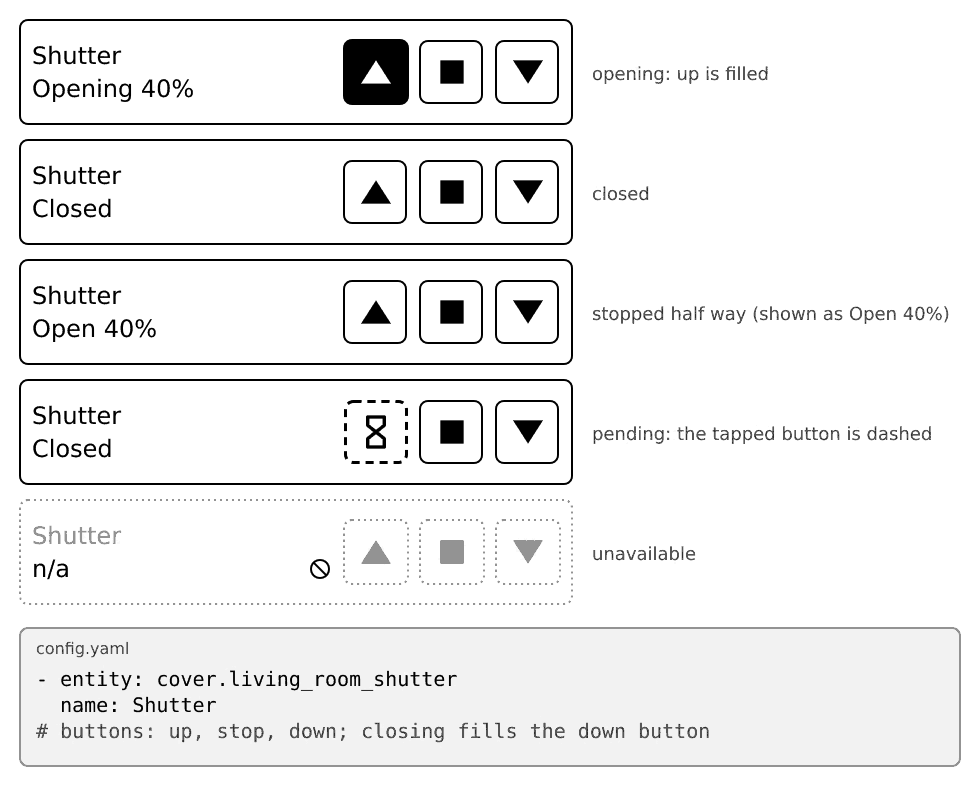
- entity: cover.living_room_shutter
  name: Shutter
Cover or light group#
A group lets one tile control several things of the same kind. Define the group once at the top of the file, then use it as a widget:
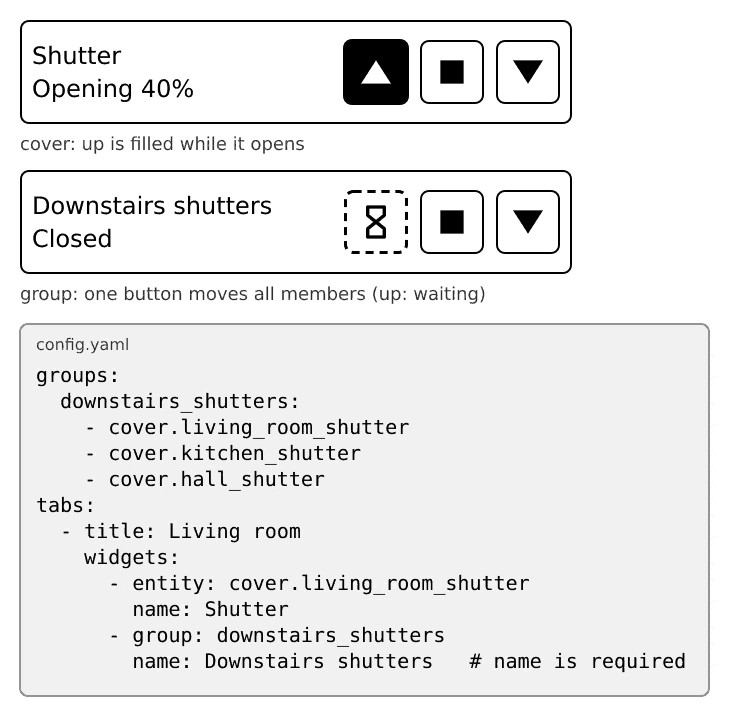
groups:
  downstairs_shutters:
    - cover.living_room_shutter
    - cover.kitchen_shutter
    - cover.hall_shutter
tabs:
  - title: Living room
    widgets:
      - group: downstairs_shutters
name: Downstairs shutters- Group names use only lowercase letters, digits and
_. - All members share one kind (all covers, or all lights).
- A group has up to 16 members, and the widget needs a
name.
If it doesn't work: "unknown group" means the name after group: is not spelled like the one under groups:.
Thermostat (climate)#
A wide tile: current temperature, humidity, a target and minus and plus buttons. Taps on the buttons are collected and sent 1.5 seconds after your last tap, so you can tap several times.
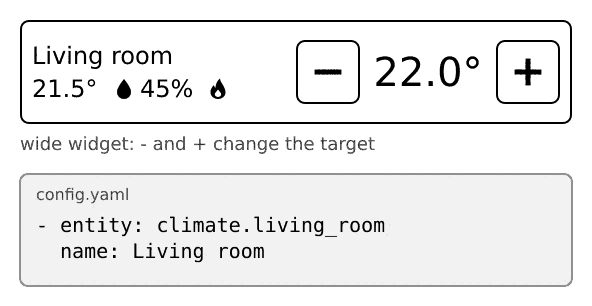
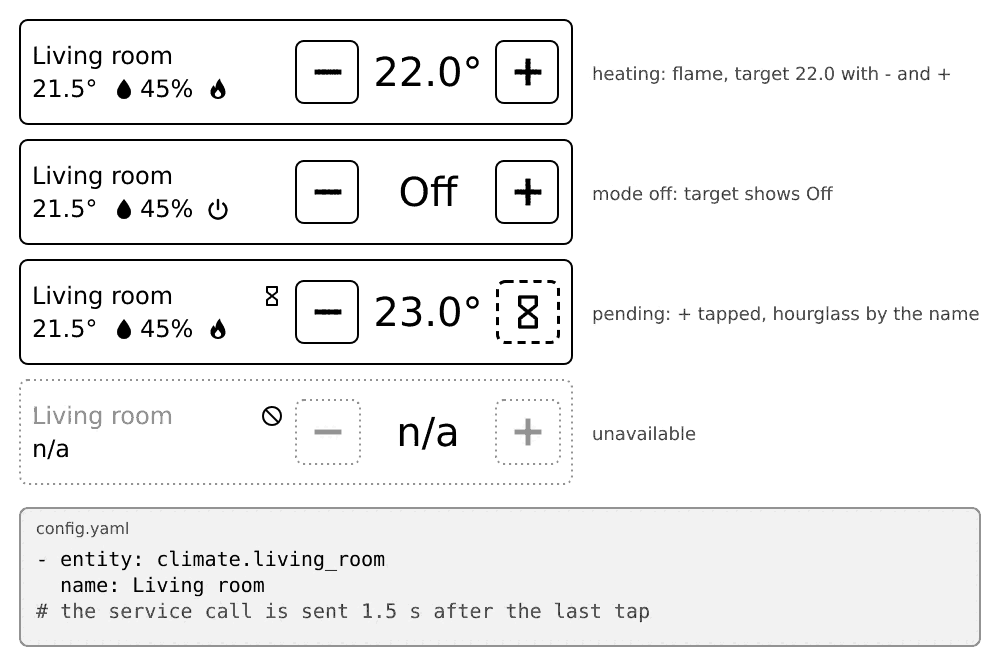
- entity: climate.living_room
name: Living roomSensor#
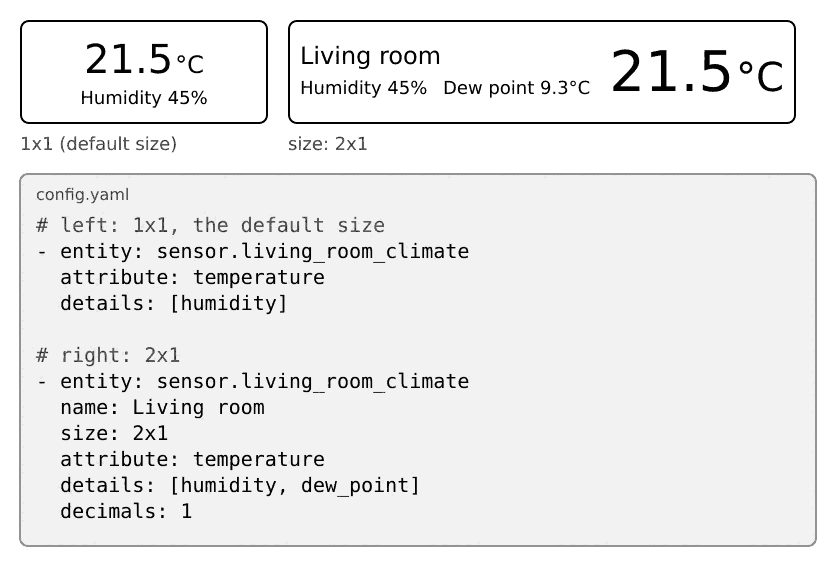
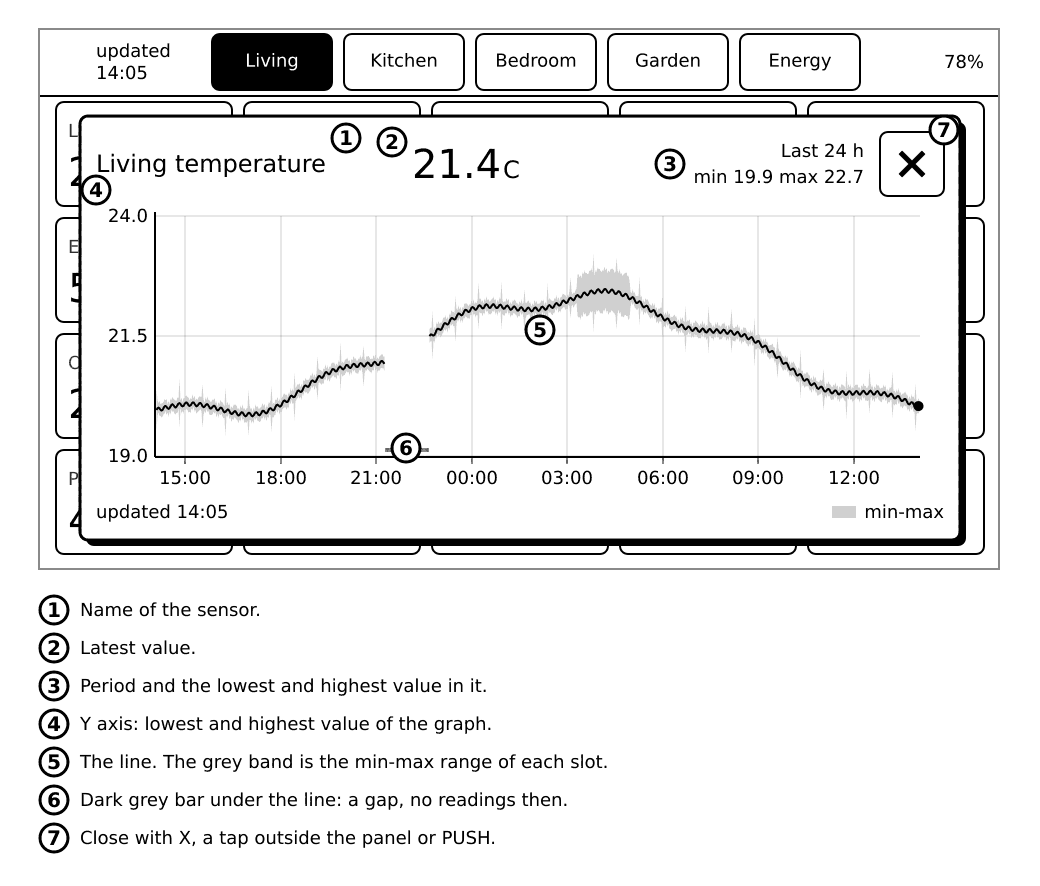
Shows a value: a temperature, a humidity, a power reading. Read only. A tap (or long press) shows its history graph.
| Key | Values | Default | Effect |
|---|---|---|---|
attribute | an attribute name (a-z, 0-9, _, up to 40 characters) | the state | Show this attribute instead of the state. |
details | up to 2 attribute names, in brackets | none | A second line, only visible at 2x1 or wider. |
unit | text, up to 8 characters | from Home Assistant | Replaces the unit shown. |
decimals | 0 to 3 | whole numbers as is, others 1 decimal | Rounds numbers. |
size | 1x1 or 2x1 | 1x1 | 2x1 puts the name on the left and the value on the right. |
- entity: sensor.living_room_climate
  name: Living room
  size: 2x1
  attribute: temperature
  details: [humidity, dew_point]
  decimals: 1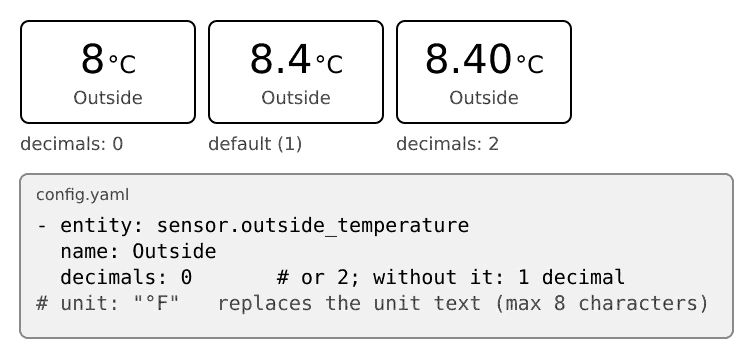
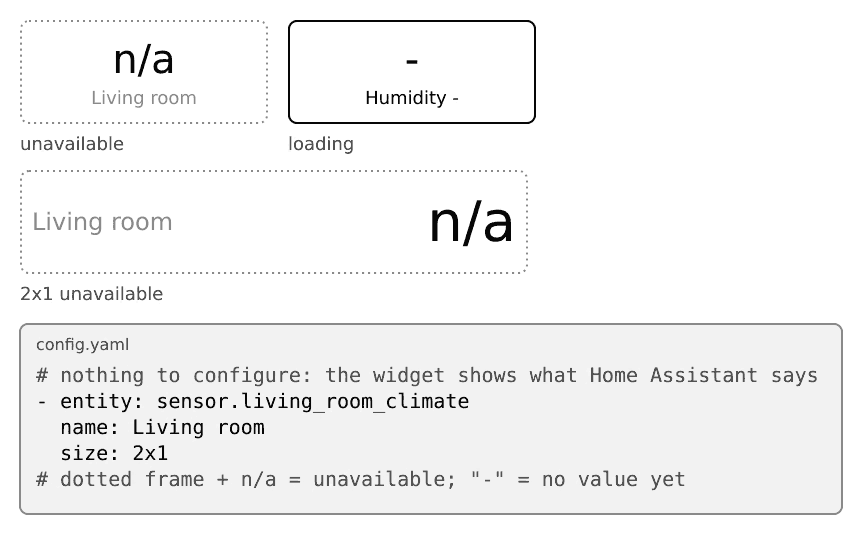
If it doesn't work: n/a with a dotted frame means Home Assistant says "unavailable"; - means no value yet. If the attribute is wrong, check its name in Home Assistant under Developer tools, States.
Show any entity as a sensor#
Some entities have no widget of their own, for example person.alice. Tell the device to show them as a sensor:
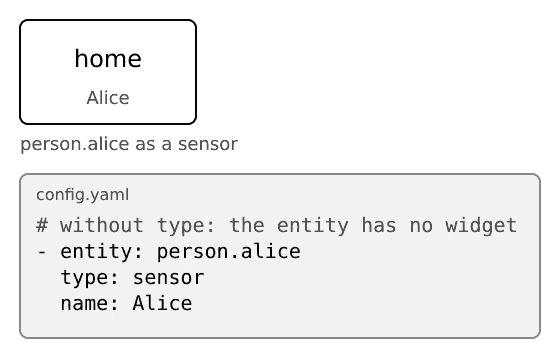
- entity: person.alice
  type: sensor
  name: Alice
Without type: sensor, the Config row in Settings reports "unsupported entity domain".
Weather#
A tile with the current condition and temperature. Default size is 2x1; 1x1 is possible.
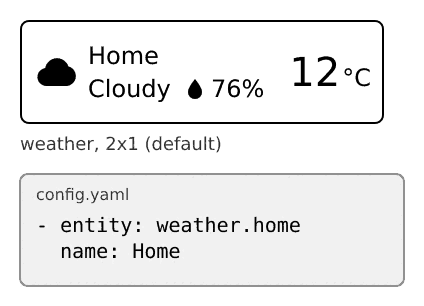
- entity: weather.home
name: HomeForecast#
Add forecast: true for the next 3 days (weekday, icon, high and low). It needs a wide tile: the size is raised automatically. A day that Home Assistant does not answer shows -.
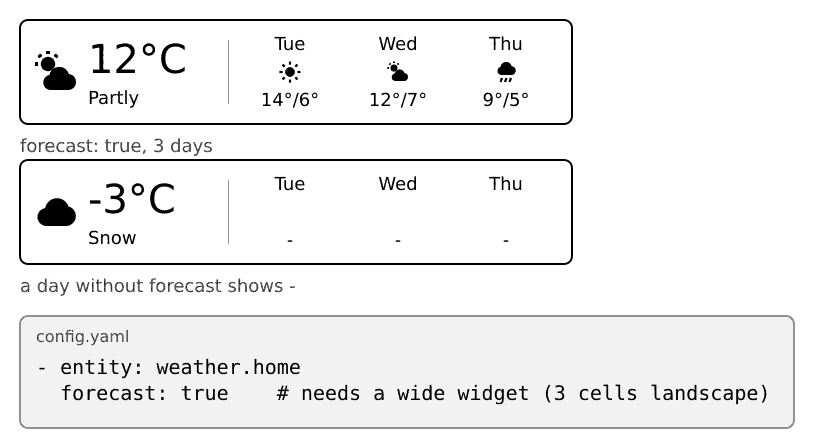
- entity: weather.home
  forecast: true
The forecast is fetched for the tab you are looking at: at each scheduled wake, and when you wake the device only if the last answer is older than 30 minutes. forecast works for a single weather entity only, not for a group. Default false.
Vacuum#
A wide tile with start, pause and back to dock buttons.
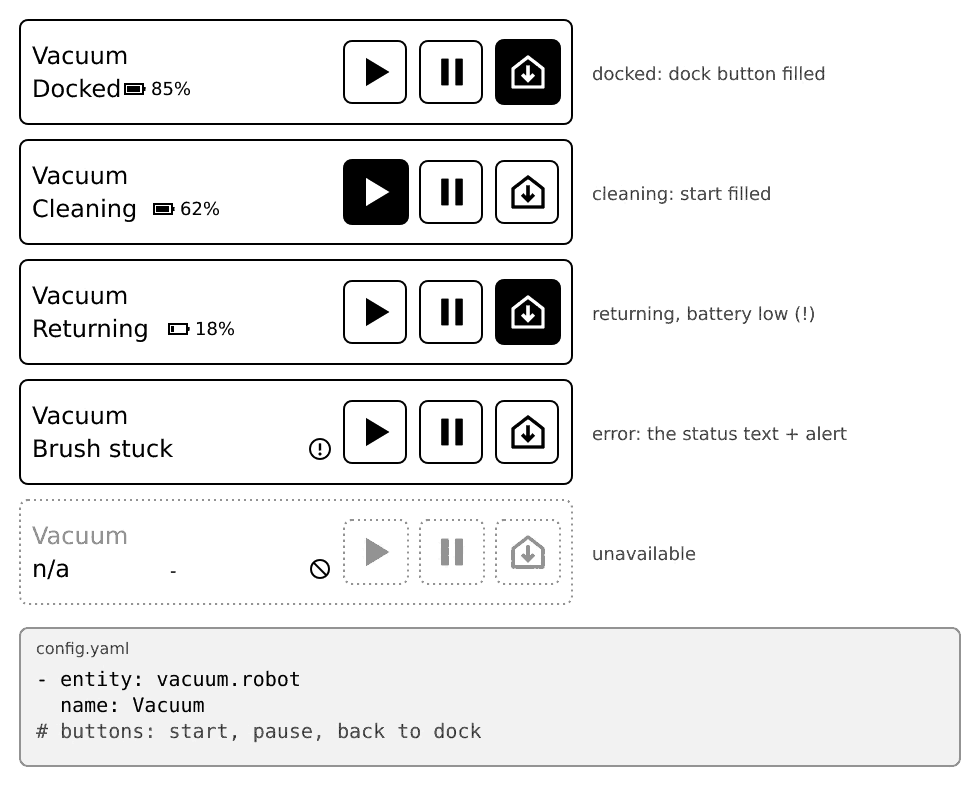
- entity: vacuum.robot
  name: Vacuum
Media player#
A wide tile with the cover art of the playing track on the left, the title and artist (your name while nothing plays) and previous, play or pause, and next buttons. Tap the text or the cover to open a popup with a large cover, title, artist, album, the buttons, a volume bar (minus and plus in 5 % steps, or rocker up and down) and mute. Volume and mute are dotted when the player does not support them.
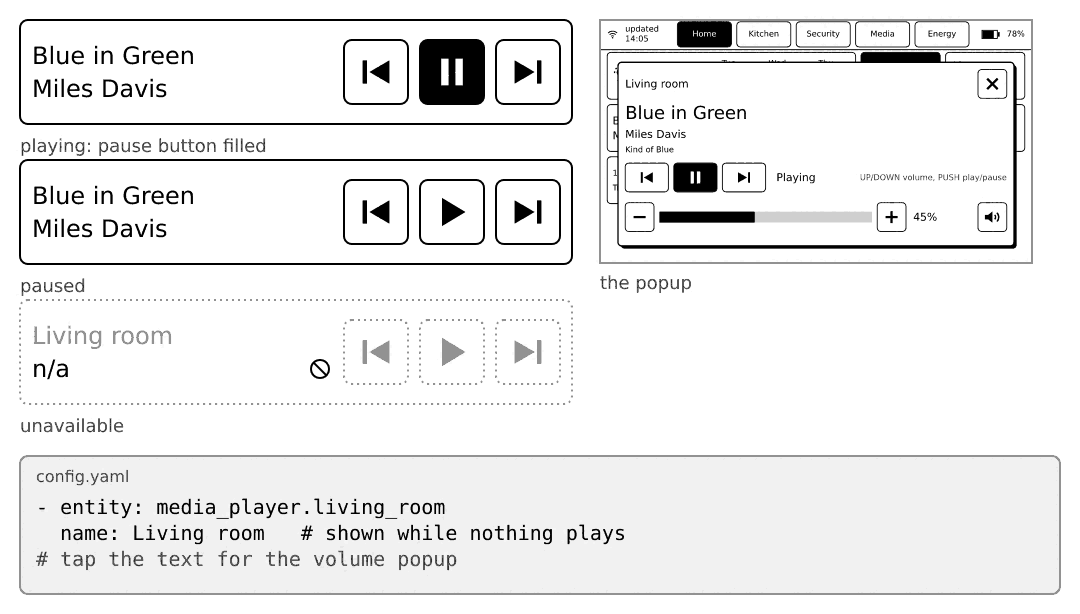
- entity: media_player.living_room
  name: Living room
One entity per tile (no groups). With several players, give each a name.
Cover art#
The picture comes from Home Assistant (entity_picture), is fetched once per track and shown in 16 greys. A player that is off, or has no picture, shows an empty square with a speaker; while the picture loads it shows an hourglass; if it cannot be fetched (too large, not a JPEG or PNG, no answer) it shows the square with a speaker and an alert, and tries again at the next wake or when the track changes. Because the cover sits beside the text there is room for about 14 characters in landscape and 11 in portrait; longer titles end in ....
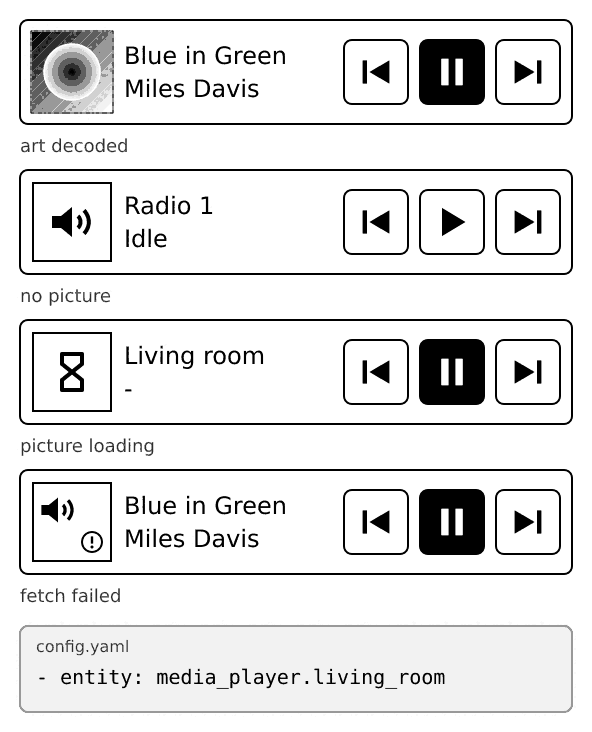
Add art: false for the text-only tile and popup:
- entity: media_player.living_room
  art: false        # default is true (picture fetched once per track)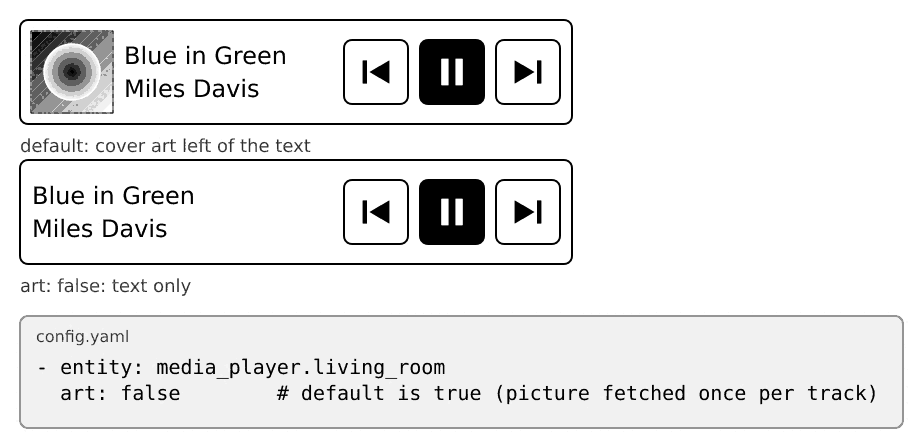
Notifications#
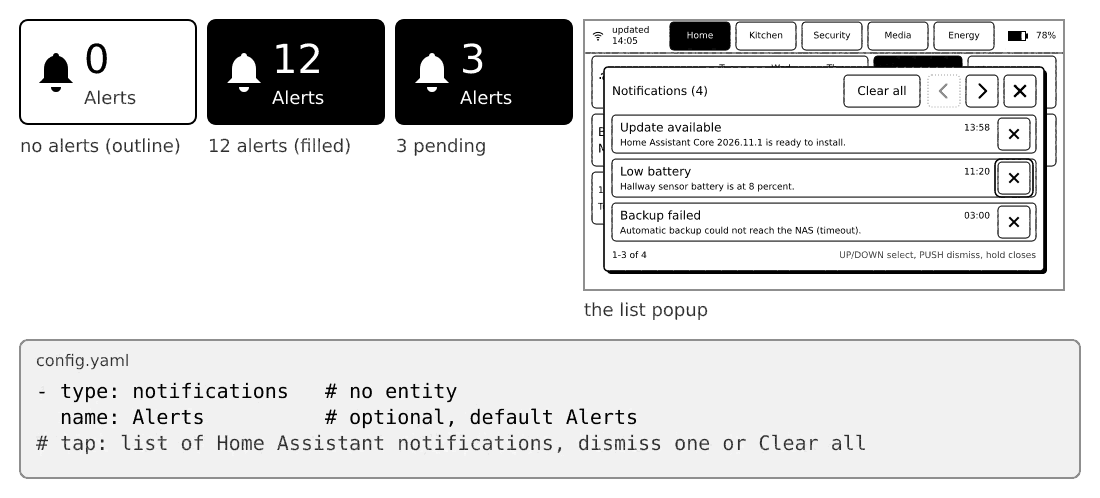
A bell with the number of Home Assistant notifications. It has no entity. Tap it to open a list where you can dismiss one notification or press Clear all (which asks first).
- type: notifications
  name: Alerts
name is optional and defaults to Alerts. The tile is outline at 0 and filled when there is at least one. It shows 99+ above 99, - while loading and n/a when the list cannot be fetched.
Alarm panel#
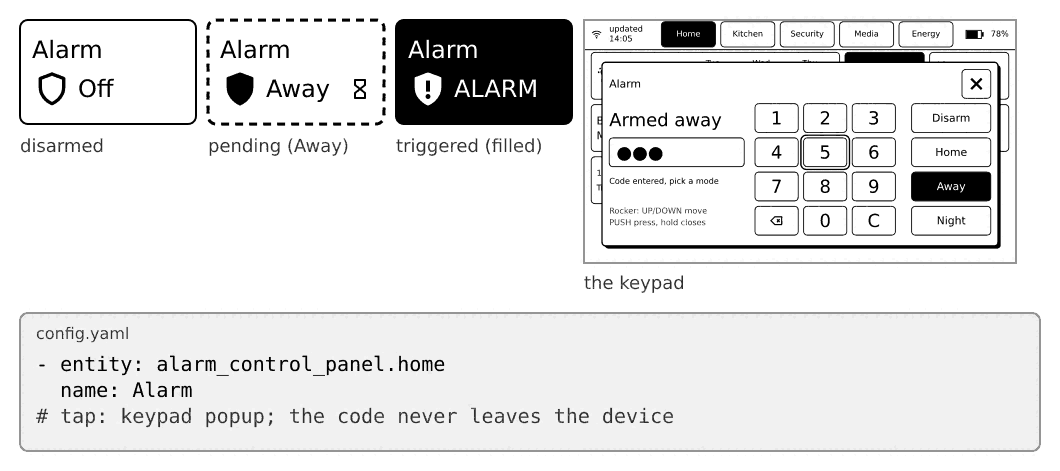
A shield with the mode of a Home Assistant alarm panel: Off, Home, Away, Night, Arming, Entry (the entry delay) or ALARM (filled while it is triggered). Tap it to open a keypad: type the code, then pick Disarm, Home, Away or Night.
- entity: alarm_control_panel.home
name: Alarm- The code is numbers only, up to 8 digits, shown as dots. It stays in the device memory, is sent only with the command, and is cleared when you send, close the keypad, or the device sleeps. It is never written to a log.
- Disarming needs the code. Arming needs it only when your panel asks for it (
code_arm_required). - A mode your panel does not support is dotted and does nothing. A panel that wants a text code (not only digits) is not supported: the keypad says so, and you can still arm without a code if the panel allows it.
- With the rocker: a ring walks the keys, then the four modes, then the close button. Up and down move the ring, push presses, hold push closes. The keypad also closes after 30 seconds without input.
- If the panel refuses the command, the keypad says
Wrong code(orFailedwhen no code was sent) and you can try again.
In the demo, the panels on the Alarm tab accept the code 1234 to disarm.
Lock and garage door#
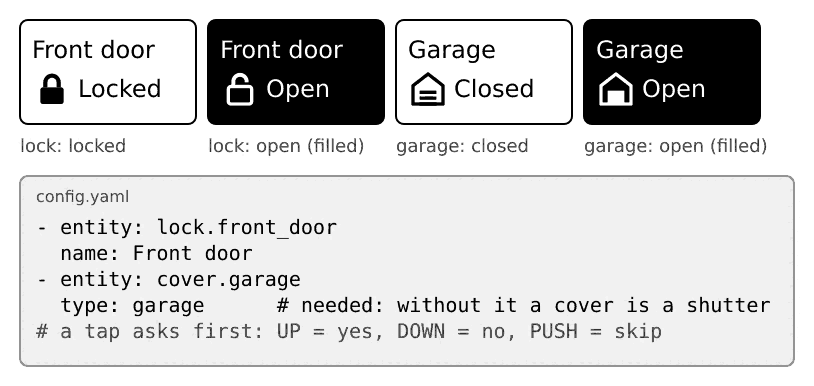
A padlock or a garage with its state. A tap asks first, then acts. The question has three buttons: Yes (rocker up), No (rocker down) and Skip (push, or a tap outside). It skips by itself after 15 seconds. Nothing happens unless you answer Yes.
- entity: lock.front_door
  name: Front door
- entity: cover.garage
  type: garage
name: Garage| Looks | A tap | |
|---|---|---|
| Lock, locked | Locked, outline | asks Unlock Front door? |
| Lock, unlocked | Open, filled | locks at once (locking is safe) |
| Lock, locking, unlocking, jammed | Locking, Opening, Jammed (filled) | nothing |
| Garage, closed | Closed, outline | asks Open Garage? |
| Garage, open | Open, filled | asks Close Garage? |
| Garage, opening or closing | Opening, Closing | stops the door, without a question |
- A garage door is a
coverentity. A cover that Home Assistant marks as a garage door or gate (device_class: garageorgate) is shown as a garage door by itself, once its first state has loaded (until then it looks like a shutter). An explicittype:always wins:type: coverkeeps the shutter,type: garageforces the garage door. confirm: trueorconfirm: falsereplaces the default (a lock asks only before unlocking, a garage door asks both ways).- A lock that needs a code is not supported: it shows an alert badge and a tap does nothing.
- Filled means "needs attention": an unlocked lock, an open garage, a triggered alarm. Everything else is an outline.
- A group is not possible for these three: one entity per tile.
Calendar#
The next two events of a Home Assistant calendar, each with its time and title ("14:30", "now", "Tue 09:00", "all day"). Read-only: a tap does nothing. It is 2x1; a wider tile is allowed where the screen has room.
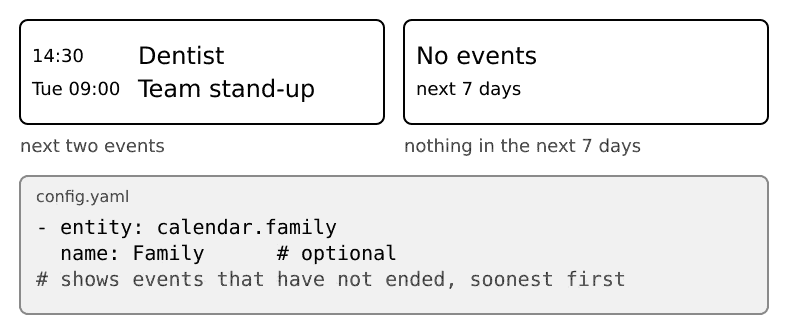
- entity: calendar.familyThe device asks Home Assistant for the events of the next 7 days while the tab is shown. "No events" means nothing is planned in that time. Events that are already over are left out. Until the answer arrives, the calendar's own next event is shown.
Energy#
Today's energy use and solar production as two bars on one scale, in kWh. Read-only: a tap or long press opens the hourly usage bars (the usage sensor only).
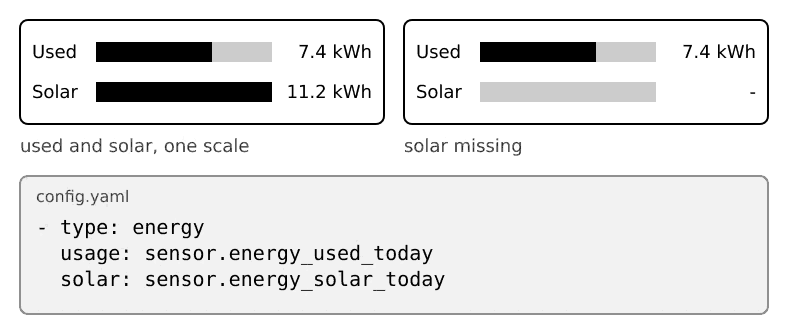
- type: energy
  usage: sensor.energy_used_today
  solar: sensor.energy_solar_today
Either key may be left out; then only that row is shown. The values are "today so far": the change since local midnight, taken from Home Assistant statistics. So a running total such as sensor.shellypro3em_..._total_active_energy works as is, a daily utility meter too. The value can lag the real one by up to an hour (statistics are compiled by Home Assistant). - means no value (yet), n/a means both sensors are unavailable.
History graph on the tab#
Add display: graph to a sensor to draw its history right on the tab. This works for sensors and binary sensors, one entity only.
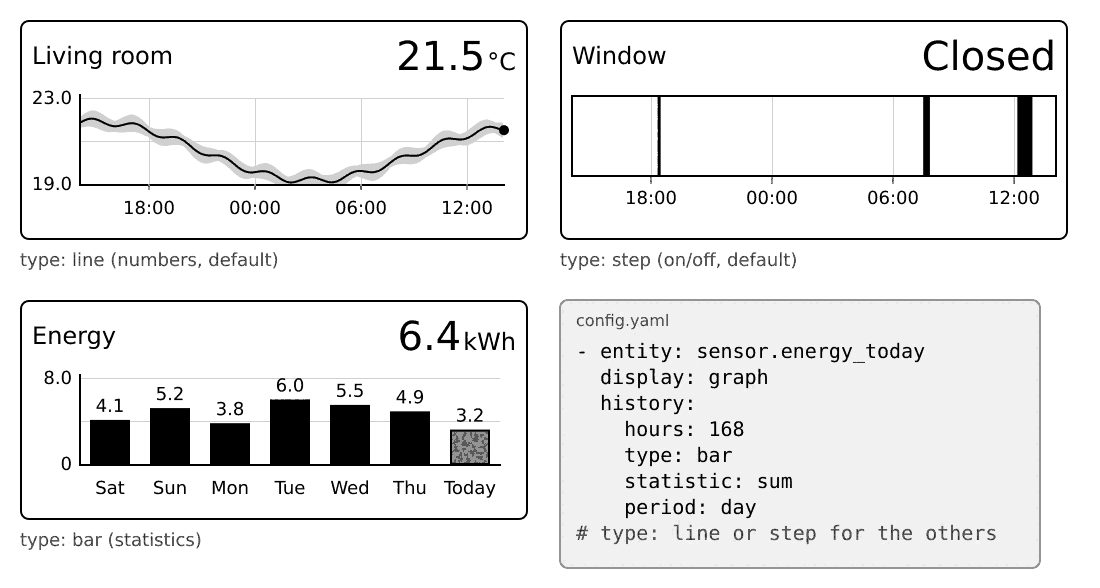
- entity: sensor.living_room_temperature
  display: graph
history: 24- Default size is 2x2. It can be at least 2x1 and at most as wide as the grid by 3 rows.
- A graph is refreshed with every wake and when you open its tab. Taps and long presses on it do nothing.
- It cannot be combined with
attribute, with a group, or withhistory: false.
Graph options#
history accepts a number of hours (history: 48), false to switch it off, or a block:
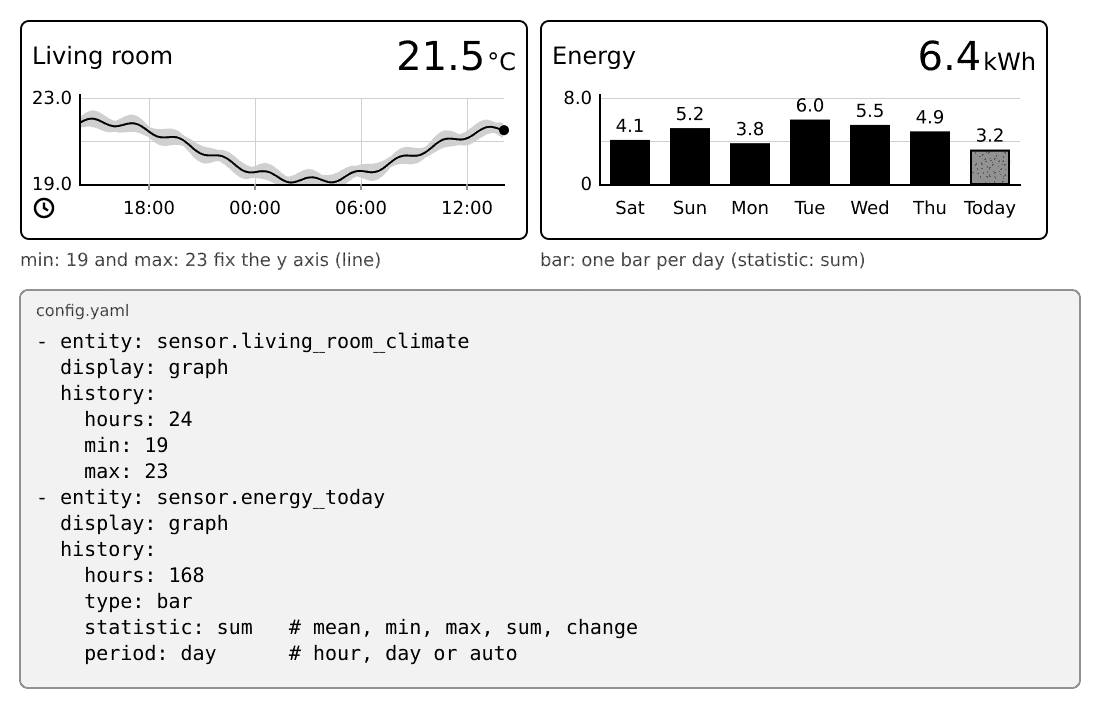
- entity: sensor.energy_today
  display: graph
  history:
    hours: 168
    type: bar
    statistic: sum
period: day| Key | Values | Default | Effect |
|---|---|---|---|
hours | 1 to 720 | 24 | How far back the graph goes. |
type | auto, line, bar, step | auto | The shape. |
statistic | mean, min, max, sum, change | mean (sum for energy sensors) | What a bar shows. Only for type: bar. |
period | auto, hour, day | auto | The width of a bar. Only for type: bar. |
min, max | numbers, min below max | automatic | Fixes the vertical axis. |
source | auto, history, statistics | auto | Where the data comes from. Bars need statistics (the default picks it). |
Not allowed: type: bar with source: history, and hourly bars over more than 128 hours.
The history popup#
Without display: graph, a tap or long press on a sensor still opens the history in a popup. Set history: false on the sensor to switch the popup off. The popup uses the same history options.
Sizes#
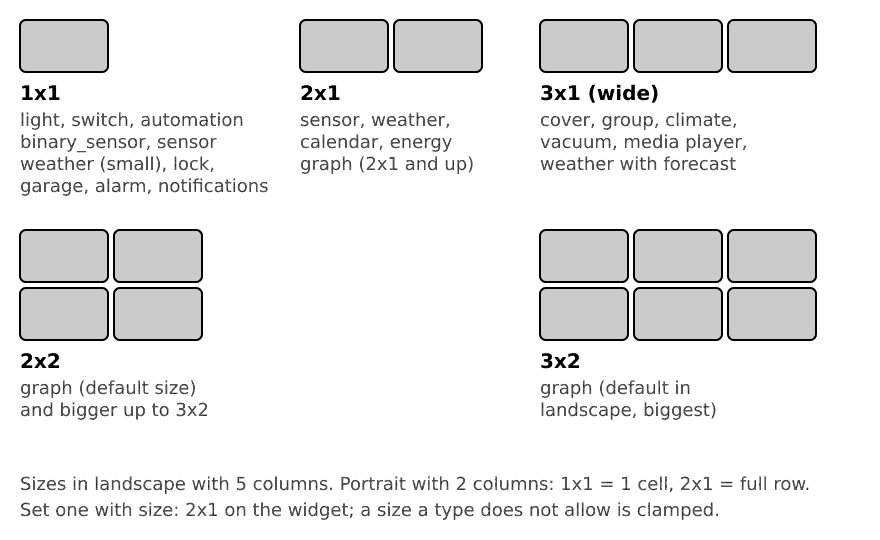
| Widget | Default | Other sizes |
|---|---|---|
| Light, switch, automation, binary sensor, notifications, alarm panel, lock, garage door | 1x1 | none |
| Energy | 2x1 | none |
| Sensor | 1x1 | 2x1 |
| Weather | 2x1 | 1x1 (and wider with the forecast) |
| Cover, group, climate, vacuum, media player | wide (2 cells in portrait, 3 in landscape with 5 columns, 2 with 4 columns) | none |
| Graph | 2x2 | 2x1 up to a full-width, 3 row block |
A size a widget does not allow is changed to the nearest allowed one.