 Inkhaus
Troubleshooting#
Find what you see, then follow the fix. "Restart the device" below means: plug in the USB cable and press the pinhole on the back once (see Touch and buttons). Most problems are a typo in one of the two files or a Wi-Fi detail.
It shows a demo dashboard with fake values#
Cause: no config.yaml was found, Demo mode is on, or secrets.yaml is missing or incomplete (then you see your own layout with fake values).
Fix:
- Settings, Tools: set Demo mode to Off.
- Check that the SD card is formatted FAT32 (not exFAT; cards over 32 GB need a special tool, see Getting started) and that
config.yamlis in the root of the card, not in a folder. - Check the file name: on Windows it may be
config.yaml.txtif file extensions are hidden.
Token rejected (padlock in the status bar)#
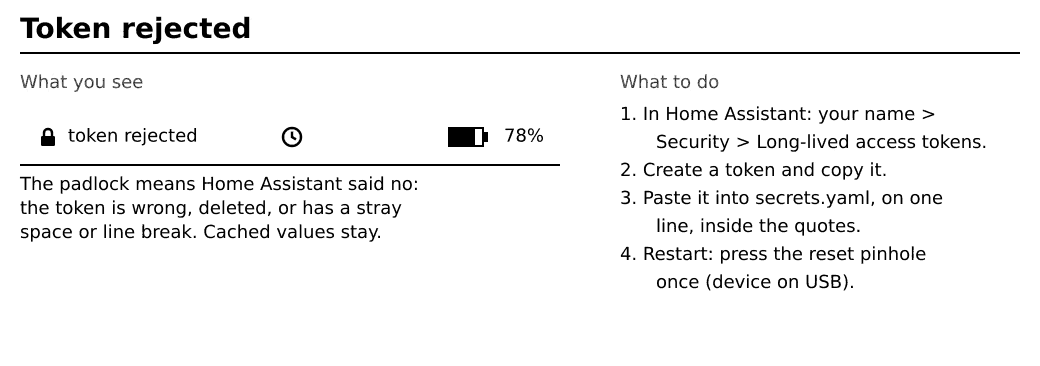
Cause: the token is wrong, was deleted in Home Assistant, or has an extra space or line break.
Fix: create a new token (Getting started, Step 2) and paste it into secrets.yaml on one line, inside the quotes.
The status bar says Offline#
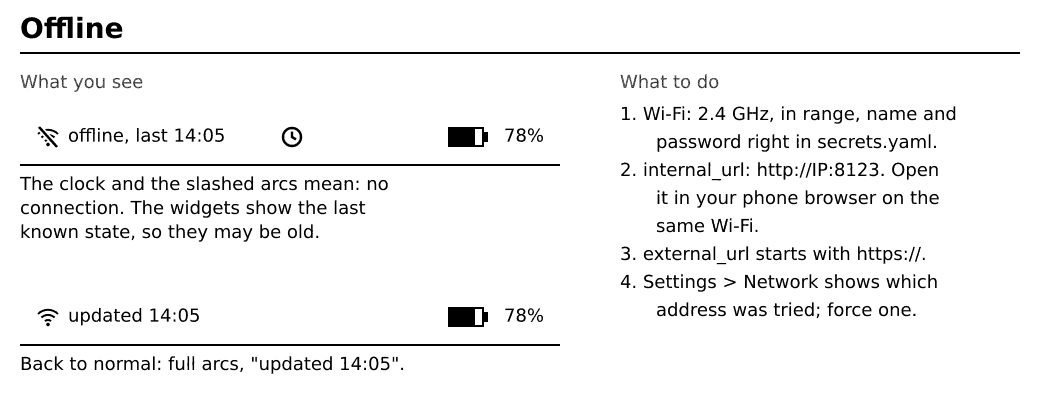
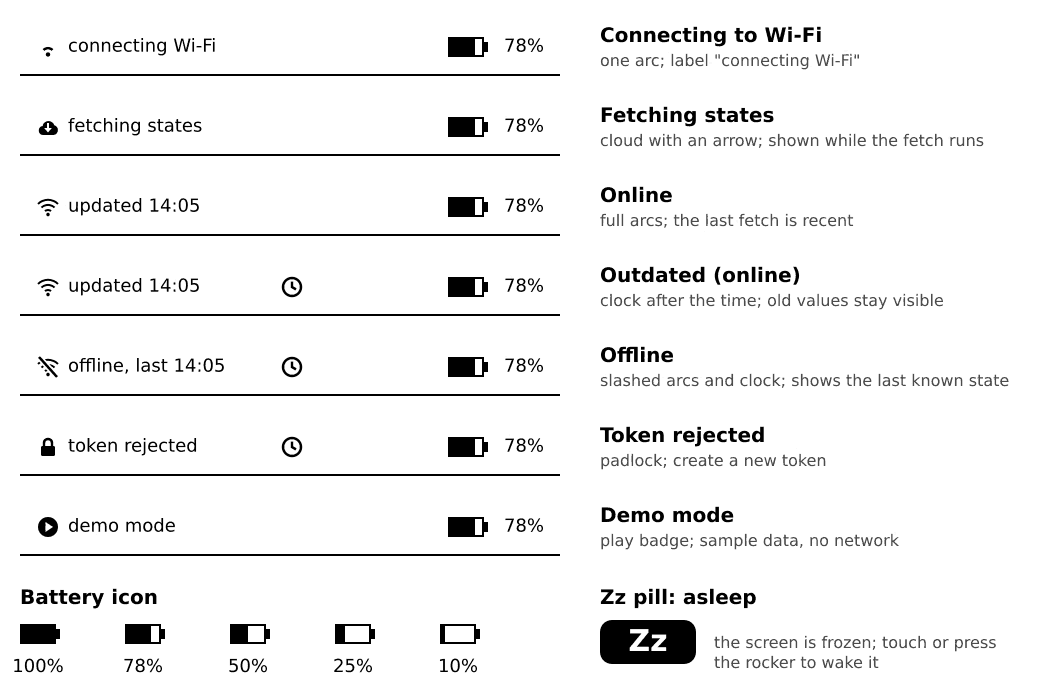
Cause: the device cannot join Wi-Fi or cannot reach Home Assistant. The screen shows the last known state.
Fix:
- The Wi-Fi must be 2.4 GHz and in range. Check
ssidandpasswordinsecrets.yaml(inside quotes, no extra space). - Check
internal_url:http://, the IP address and:8123. Open the same address in a browser on your phone while on the same Wi-Fi. external_urlmust start withhttps://and have a certificate from a normal authority: a self-signed certificate is refused.internal_urlmay behttp://orhttps://.- Use the IP address in
internal_url:.localnames (mDNS) are often not found. Home Assistant on another network (VLAN, guest Wi-Fi) must be reachable from the Wi-Fi the M5Paper uses. - 5 GHz-only networks and hidden SSIDs do not work.
- Open Settings, Network: the hints show which network and which address were used. Force a profile or address if needed.
A widget shows - or n/a#
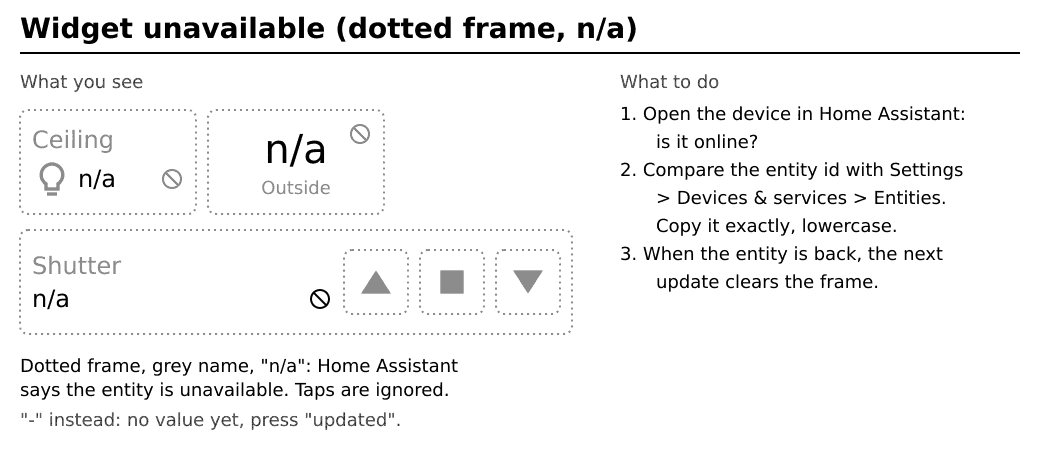
-: no value yet. Press "updated" to refresh. If it stays, the entity id is probably wrong: copy it again in Home Assistant under Settings, Devices & services, Entities.n/awith a dotted frame: Home Assistant says the entity is unavailable. Check the device in Home Assistant. Taps on it are ignored until it is back.
The Config row in Settings shows an error#
Cause: a mistake in config.yaml. The row names the place, for example tabs[0].widgets[2].entity (line 34).
Fix: open config.yaml, go to that line and check:
- the spaces at the start of the lines line up with their neighbours (spaces only, no tabs),
- the colon is followed by a space (
entity: light.x), - quotes come in pairs and are straight quotes (not curly),
- the entity id is spelled like in Home Assistant.
Fix the first error, restart the device, and check again. The row is explained here.
"unsupported entity domain, set 'type' explicitly"#
The entity is of a kind that has no widget (for example person.). Add type: sensor to show it as a sensor. For other kinds without a widget (a scene, say) this shows the state as text only: you can read it but not operate it. Locks, alarm panels and garage doors have their own widgets. See Widgets, Show any entity as a sensor.
The screen stays blank or does not wake#
- Press the rocker. In Power off mode hold it for about 3 seconds.
- Charge the device with the USB-C cable for a few minutes.
- Plug in the USB cable and press the pinhole on the back once with a pin (restart).
- Still nothing? Install again from the install page.
The screen looks garbled after installing#
The next start does one full redraw. If it stays garbled, restart the device.
Faint traces of old pictures#
That is normal for e-ink. The device cleans it with a full refresh when you change tab or before it sleeps.
Taps seem slow#
The screen needs about half a second per update. Wait for it, then tap again. A wake from sleep also needs a moment to join Wi-Fi.
Low battery#
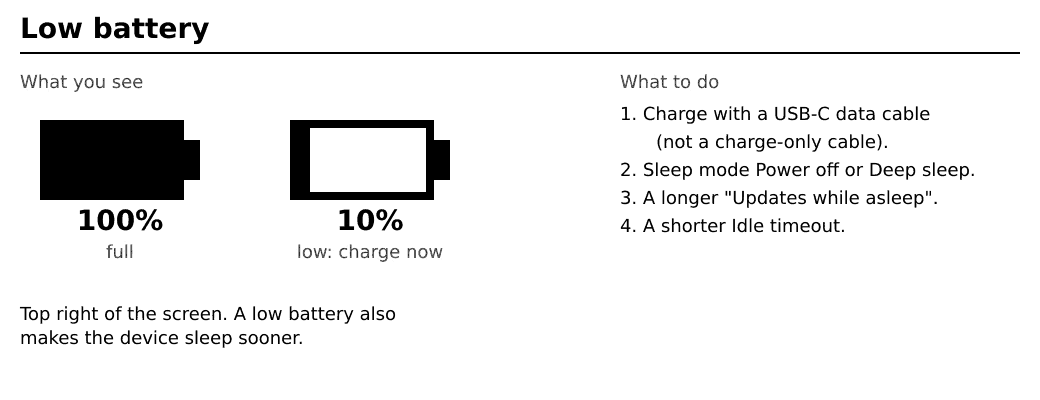
Charge with a USB-C data cable. To make the battery last, use Sleep mode Power off or Deep sleep, a longer Updates while asleep, and a shorter Idle timeout. See Sleep and battery.
An update failed or says rolled back#
The previous firmware was restored. Try the update again on USB power, or install from the install page.
The installer does not see the device#
Use Chrome, Edge or Opera, a USB cable that carries data, and close other programs that use the serial port. Firefox and Safari cannot install from the web: use the installer app (a program you download and run on your computer) from the Releases page.